
Completing a standard service visit
Add the service items you actually did, tick them off unit by unit, then submit the whole job for admin review.
Walkthrough
Three steps to finish and submit a visit.
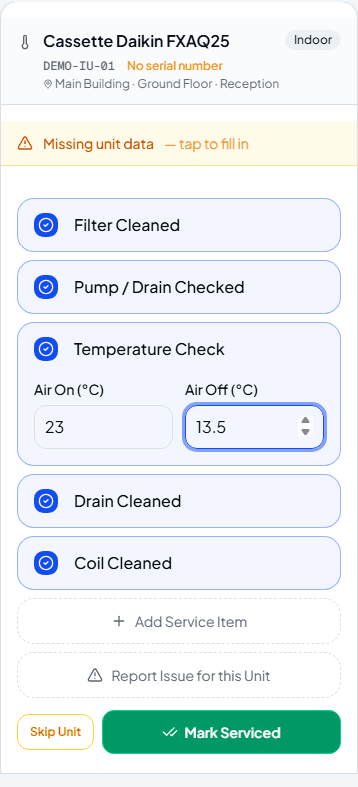
Add the service items you did
Nothing shows by default — tap Add Service Item and pick each one as you do it, like Filter Cleaned or Temperature Check. Adding an item ticks it off automatically, and Temperature Check adds Air On / Air Off fields.
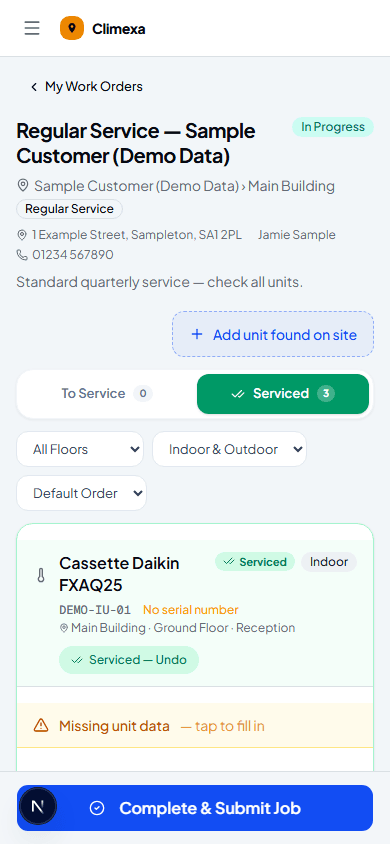
Mark each unit serviced
Mark Serviced moves a unit from To Service into the Serviced tab — repeat for every unit on site. Undo is right there if you tap it by mistake.
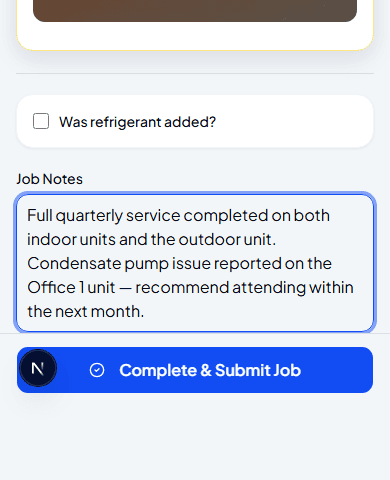
Add job notes and submit
Job Notes is a good place for anything the checklist doesn't cover — Complete & Submit Job sends the whole visit for admin review, including any issues or leak checks you logged along the way.
Frequently asked
Can I submit before every unit is marked serviced or skipped?
Yes — submitting is your call. Just bear in mind the admin will see whatever state you left each unit in.
What if a unit doesn't need servicing this visit?
Skip Unit records a reason instead — no access, already serviced recently, and so on — so it's clear why it wasn't touched.
Can I change anything after I submit?
No — once it's submitted the job becomes read-only on your side while the admin reviews it.
Experience Climexa with a free 30-day trial.
See how installation, commissioning, servicing, compliance and customer reporting work together in one platform.
- 30-day free trial
- No credit card required
- Full platform access