
Finding and starting your work orders
Your dashboard shows today's workload at a glance — open any job and tap Start Job when you're ready to begin.
Walkthrough
Four steps from sign-in to a started job.
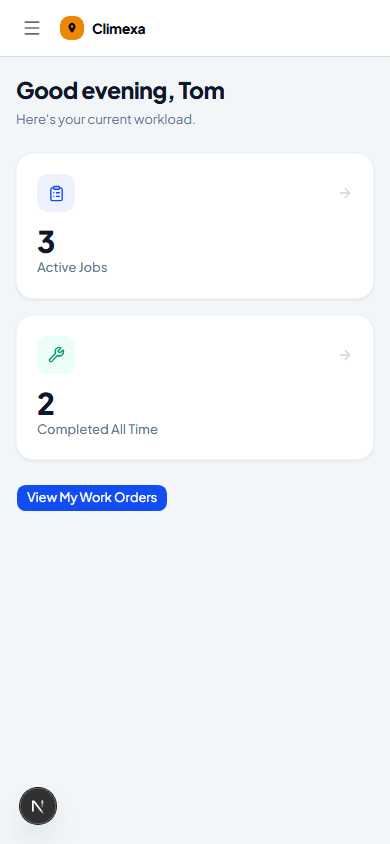
Check your workload on the dashboard
Active jobs and your all-time completed count sit right at the top when you sign in — View My Work Orders takes you to the full list.
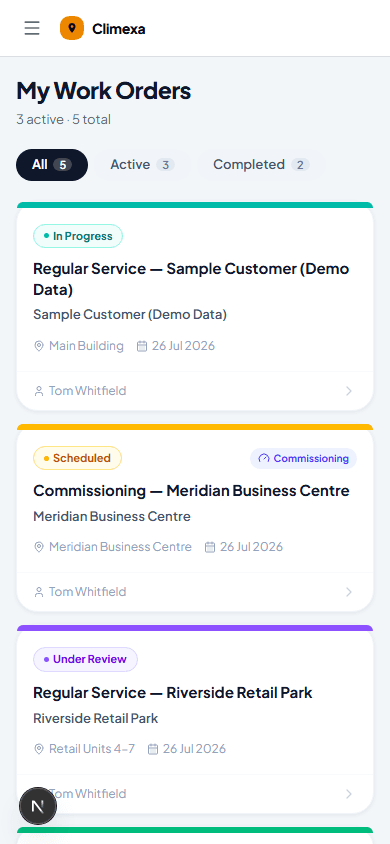
Browse My Work Orders
Every job assigned to you, with All, Active and Completed tabs so you can filter down to just what's ahead of you today.
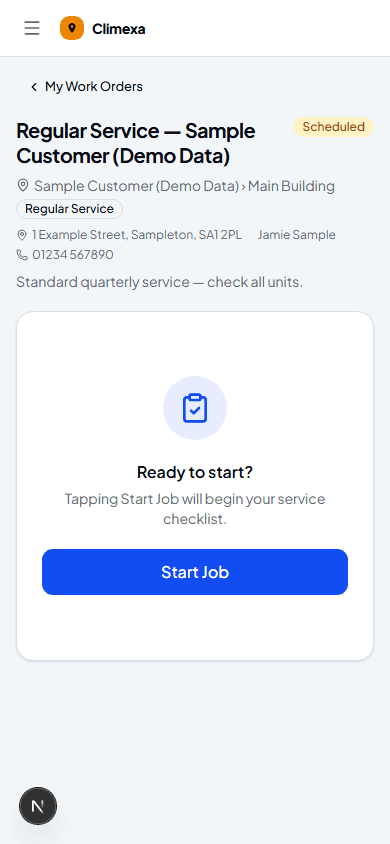
Open a job to see the details
Customer, site, contact details and any notes from the office — everything you need before you start, with Start Job ready when you are.
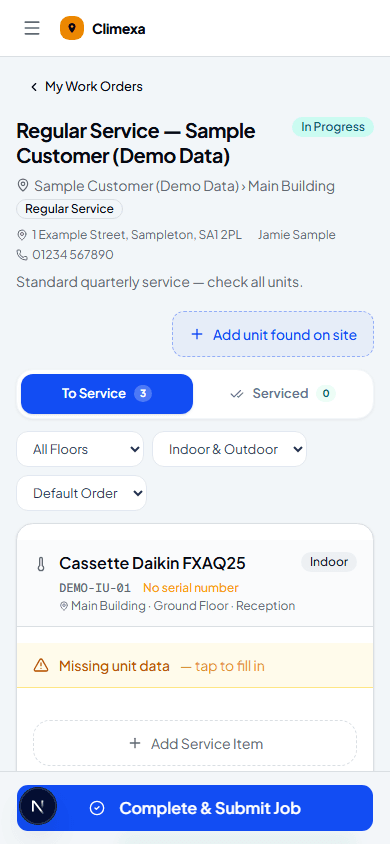
Start the job
Start Job creates your job card and drops you straight into the service checklist for every unit on site — ready to work through, covered in the next guide.
Frequently asked
Can I start a job before its scheduled date?
Yes — Start Job is available as soon as the job is assigned to you, whatever its scheduled date says.
What if I open the wrong job by mistake?
Nothing is saved until you tap Start Job — just go back to My Work Orders and open the right one instead.
Do I need a connection to use Climexa on site?
Yes — Climexa saves as you go, so you'll need a data or wifi connection to load a job and for each action to save.
Experience Climexa with a free 30-day trial.
See how installation, commissioning, servicing, compliance and customer reporting work together in one platform.
- 30-day free trial
- No credit card required
- Full platform access