
Reviewing and signing off completed work orders
When an engineer submits a job, it waits for you — approving it is what actually marks it done.
Walkthrough
Three steps: spot it, check it, approve it.
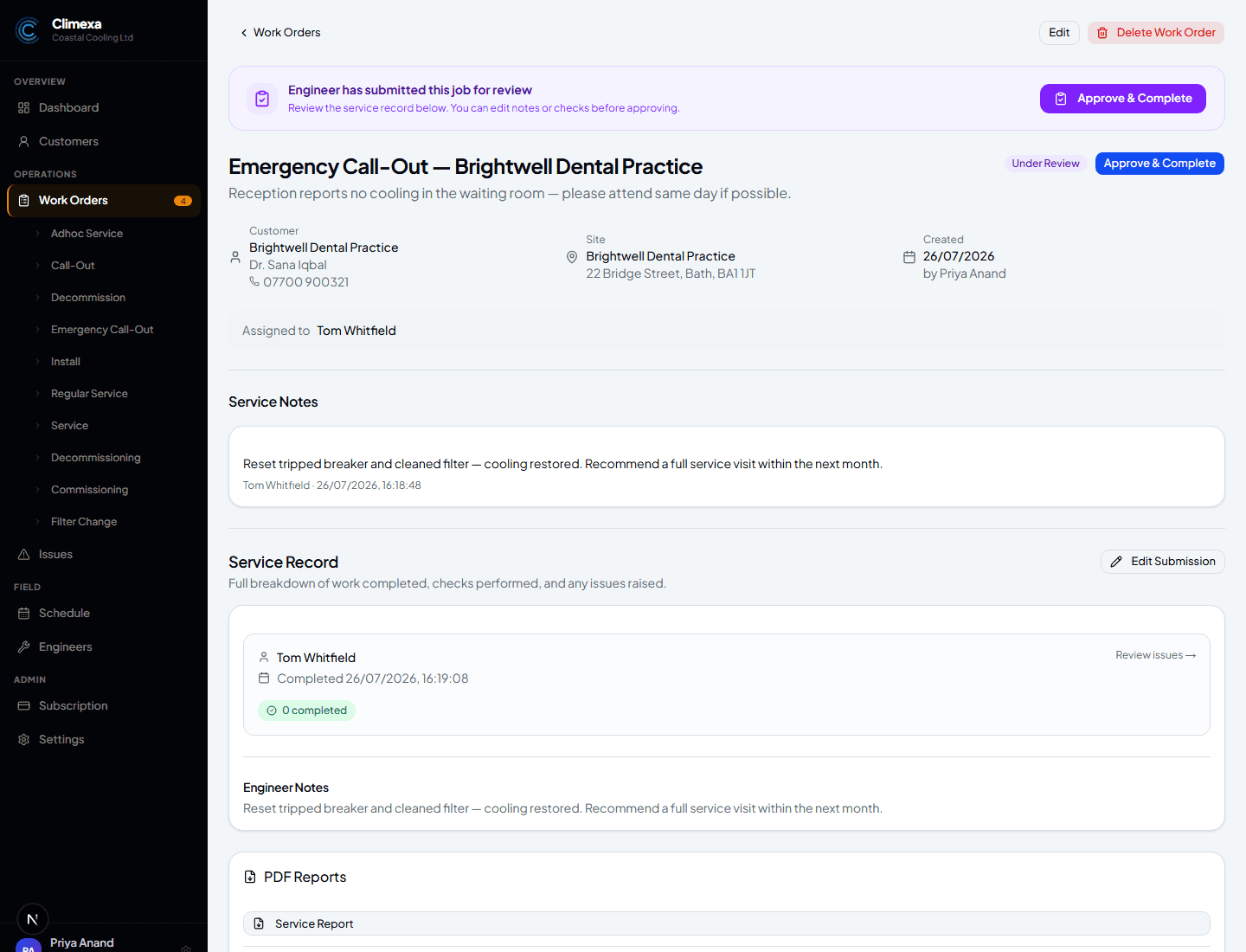
Spot what needs your attention
A submitted job shows an Under Review badge and a banner at the top of the work order — the same status that gets its own flagged stage on your dashboard's pipeline and calendar.
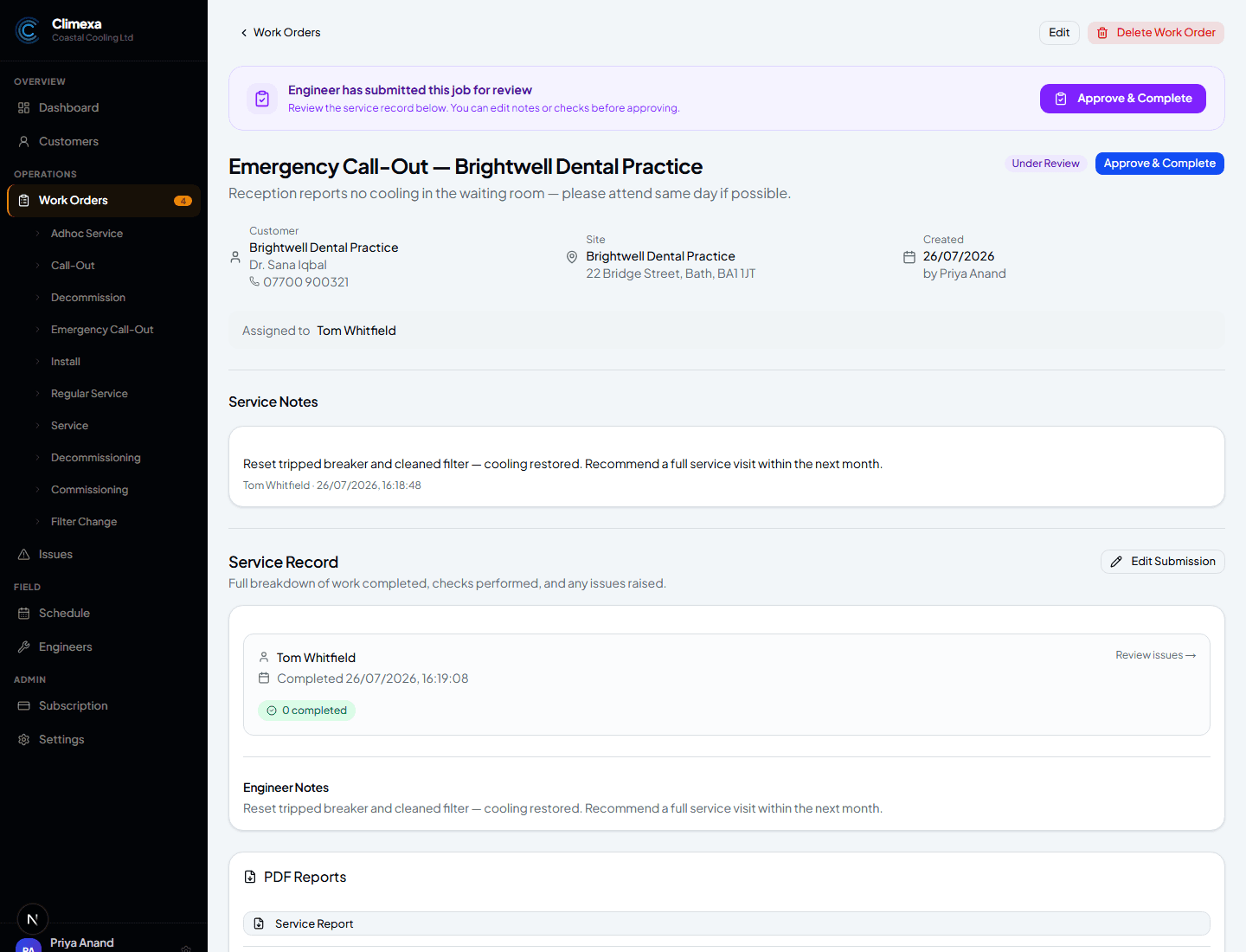
Check the service record
Everything the engineer recorded sits below — notes, checks, any issues raised, and PDF report options that are already available even before you approve.
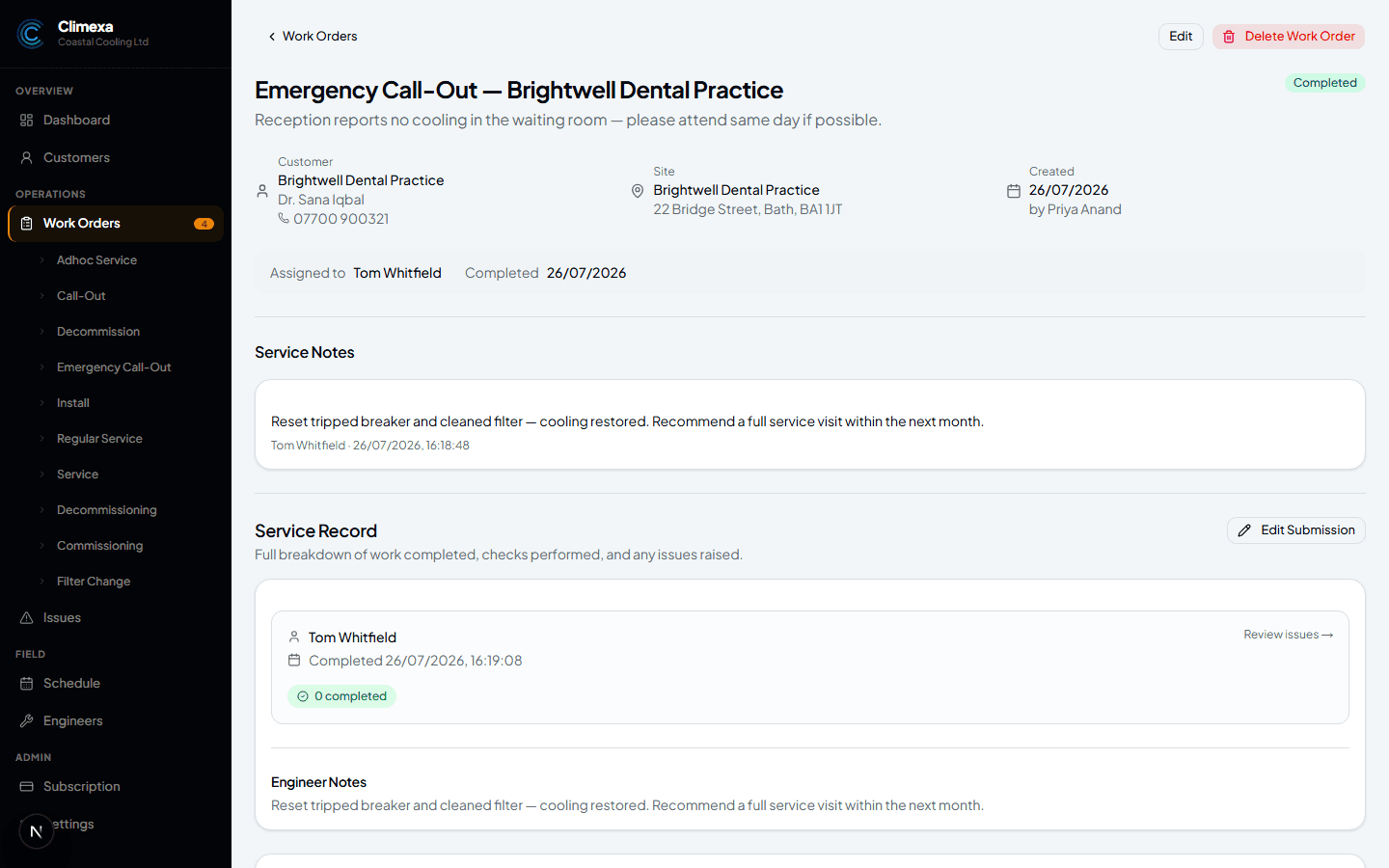
Approve & Complete
One click moves it to Completed for good. If you spot something worth changing first, use Edit Submission rather than approving and fixing it after.
Frequently asked
Can I edit the record before approving?
Yes — Edit Submission lets you adjust notes or checks directly, so you're not approving something you'd have to fix straight after.
Is there a way to send it back to the engineer instead?
Not as a separate reject step — if something needs correcting, edit it yourself, or raise it as a follow-up issue if it needs a return visit.
Does it complete itself if I never review it?
No — it stays Under Review indefinitely. Nothing times out or auto-approves; it waits for you.
Experience Climexa with a free 30-day trial.
See how installation, commissioning, servicing, compliance and customer reporting work together in one platform.
- 30-day free trial
- No credit card required
- Full platform access