
Scheduling and the calendar
One calendar for every work order across your whole company, filterable down to exactly what you're looking for.
Walkthrough
Three things worth knowing about the Schedule page.
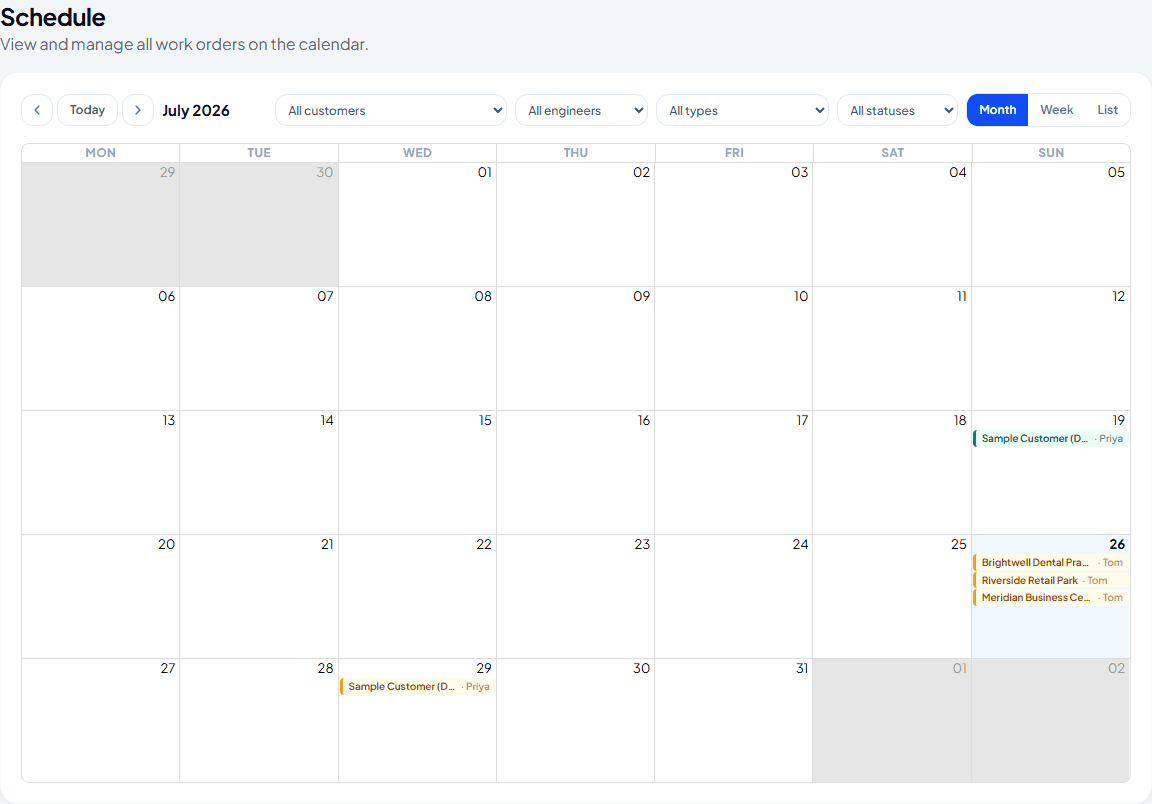
Open the full schedule
Schedule shows every work order on a month calendar — colour-coded by status, each one labelled with customer and engineer. Click any entry to jump straight to that work order.
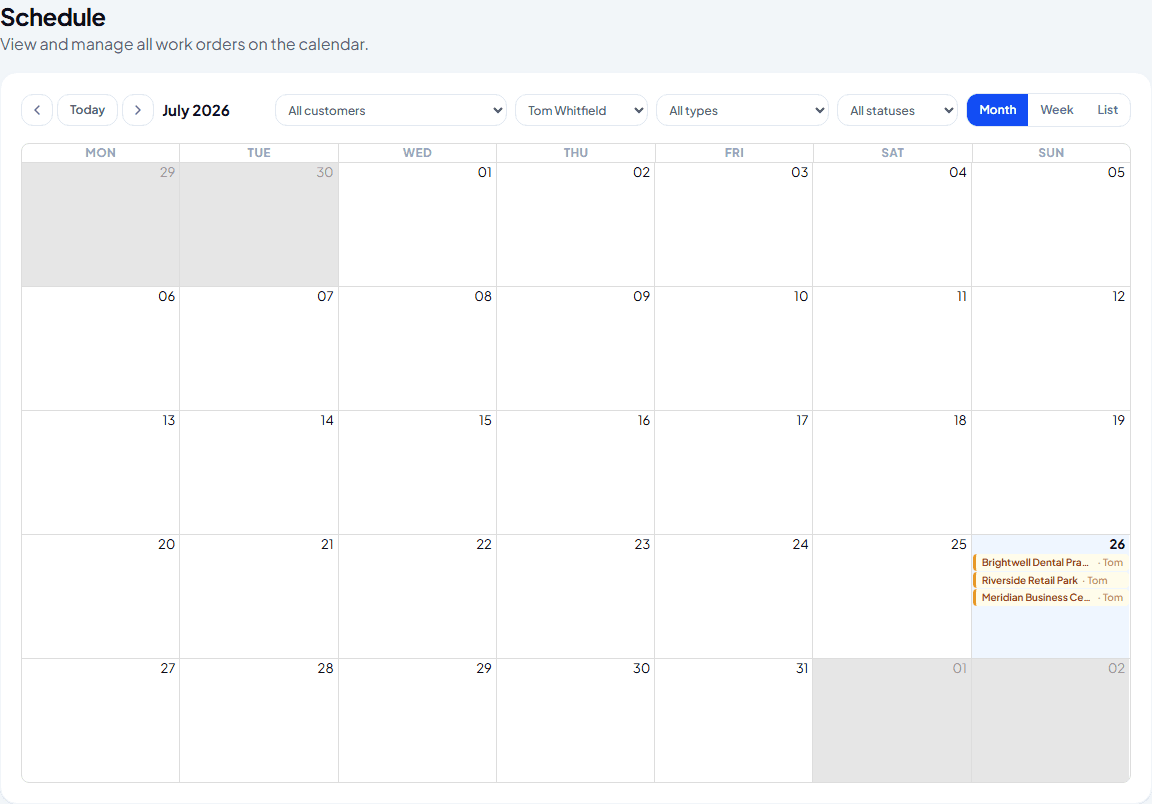
Filter down to what matters
Narrow by customer, engineer, job type or status — useful for checking one engineer's week, or spotting everything still Scheduled that hasn't been picked up yet.
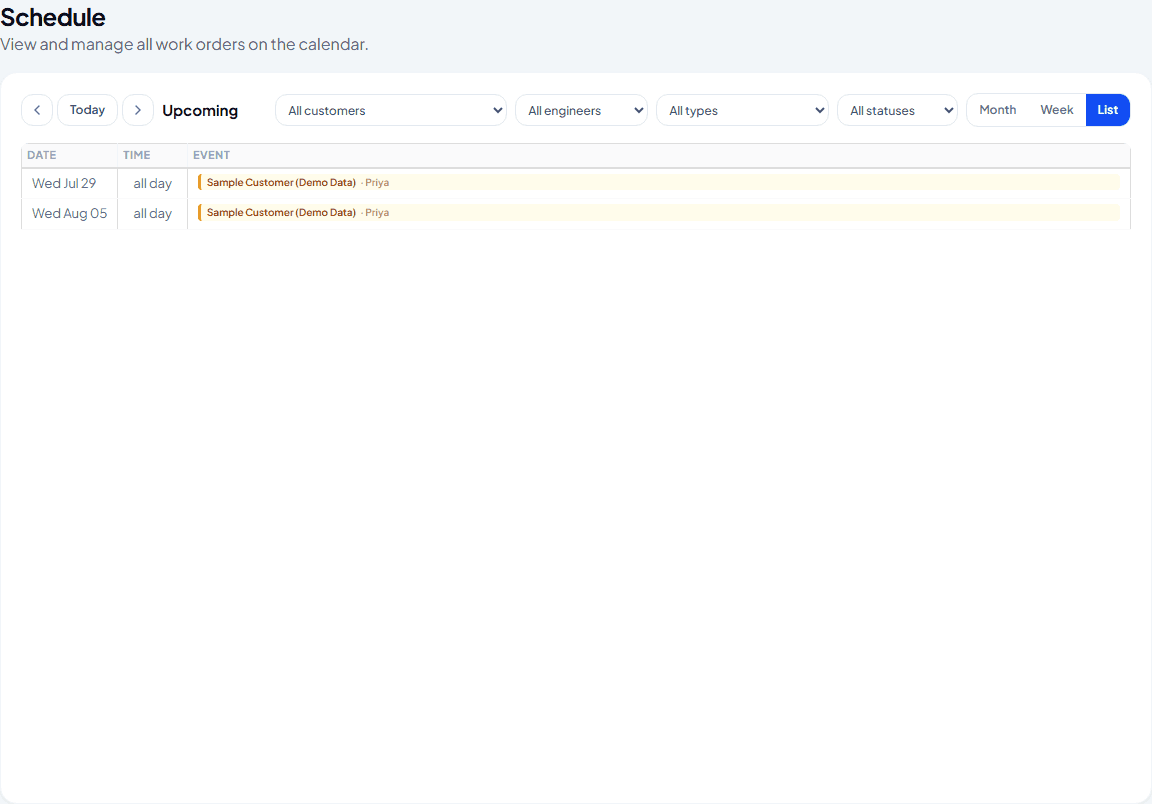
Switch views
Month, Week or List — List lays out everything scheduled over the next 60 days as a flat, scannable table instead of a grid, which is often faster when you just need to check what's coming up.
Frequently asked
Is this the same calendar as the one on my dashboard?
Same data, different scale — the dashboard shows a small month widget as a quick glance; this is the full page with filters and Week/List views alongside Month.
Can I reschedule a job from here?
Not by dragging it on the calendar — open the work order itself and change its date there.
Do engineers see this calendar too?
No — engineers work from My Work Orders on their phone, scoped to their own jobs rather than the whole company's schedule.
Experience Climexa with a free 30-day trial.
See how installation, commissioning, servicing, compliance and customer reporting work together in one platform.
- 30-day free trial
- No credit card required
- Full platform access