
Setting up your profile and signature
Add your certification number once, and save a signature that's used automatically on your commissioning reports and job cards from then on.
Walkthrough
Three steps, done once.
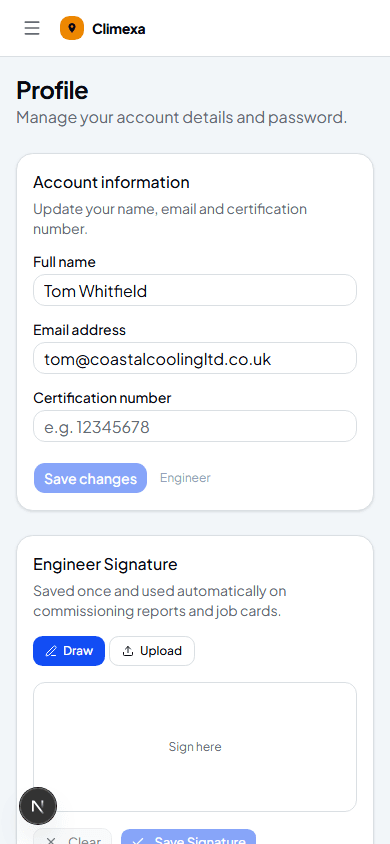
Add your certification number
Your Profile page holds your name, email and F-Gas certification number — add it once and it's used wherever your certification needs to appear.
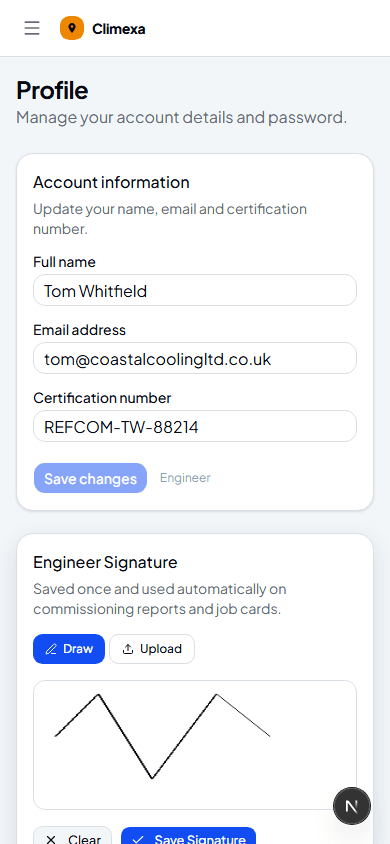
Draw your signature
Draw it directly on screen, or Upload a photo of your signature instead if that's easier.
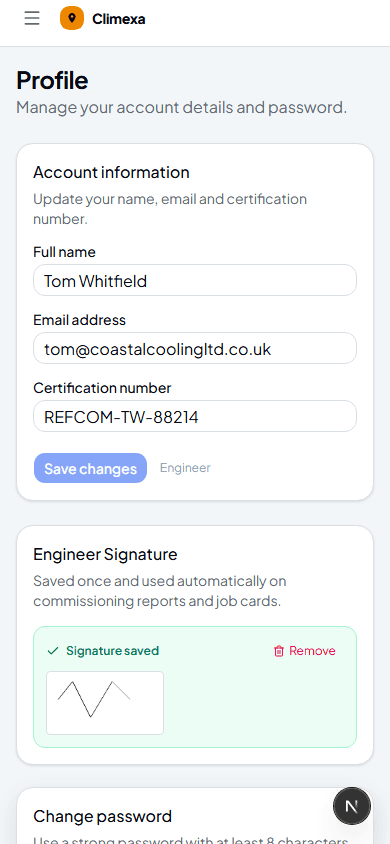
Save it — and you're set
Save Signature stores it once. From here on it's applied automatically wherever your signature is needed — you won't be asked to sign in person again.
Frequently asked
Where does my saved signature actually get used?
On commissioning reports and job cards — it's applied automatically rather than something you draw fresh on every job.
Can I change my signature later?
Yes — Remove clears the saved one and brings back the editor so you can draw or upload a new one.
Is a certification number required to use Climexa?
It's tied to your F-Gas qualification and appears on your service records, so it's worth adding as soon as you're set up, even if nothing stops you working without it.
Experience Climexa with a free 30-day trial.
See how installation, commissioning, servicing, compliance and customer reporting work together in one platform.
- 30-day free trial
- No credit card required
- Full platform access